
-
Installation
-
Transform Animation
-
Filter Animation
-
Stack Animation
-
Import/Export Stack
-
Timers
-
Twitch Extension
-
StreamElements Extension
-
Streamlabs Extension
-
StreamerSonglist Extension
-
Stream Deck Plugin
-
Midi
-
WebSocket Server
-
Custom OBS Browser Source
-
TTS (Text To Speech)
<
Setup Server
Updated
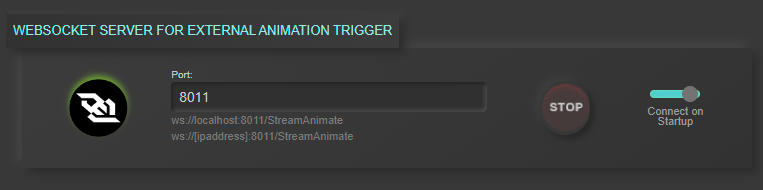
- Stream Animate > Settings > Websocket Server for External Animation Trigger
2. Choose a unused port number
3. Click Start
4. Optional: Connect on Startup – Check this if you want to automatically start the server when the software launches
Connect to the server with a WebSocket Client using either URL below – Replace Port Number and IP Address
ws://localhost:8011/StreamAnimate
ws://ipaddress:8011/StreamAnimate
Table of Contents