
-
Installation
-
Transform Animation
-
Filter Animation
-
Stack Animation
-
Import/Export Stack
-
Timers
-
Twitch Extension
-
StreamElements Extension
-
Streamlabs Extension
-
StreamerSonglist Extension
-
Stream Deck Plugin
-
Midi
-
WebSocket Server
-
Custom OBS Browser Source
-
TTS (Text To Speech)
1. Stream Animate > Extensions > Twitch Extension > Click ‘CONNECT TWITCH ACCOUNT’
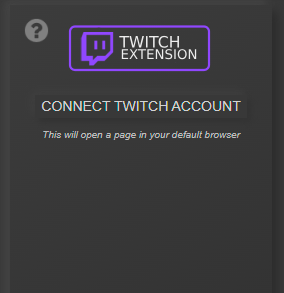
Note: A page will open in your default browser
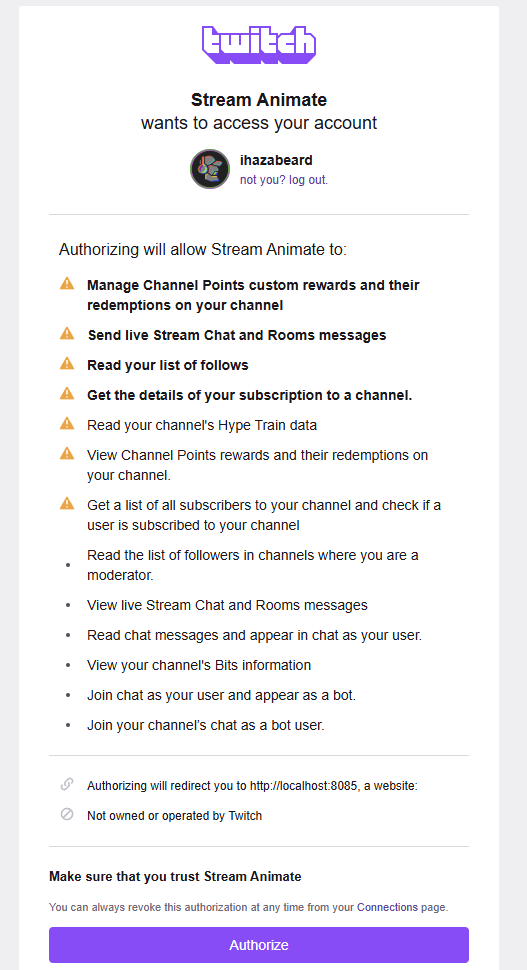
2. Authorize Stream Animate connecting with your Twitch account
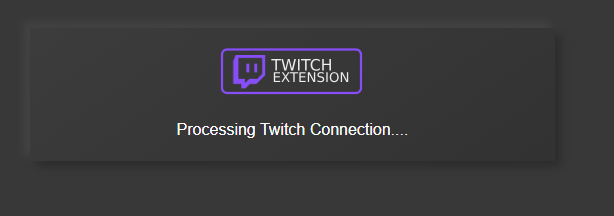
3. This will navigate to a new page and validates the connection was successful
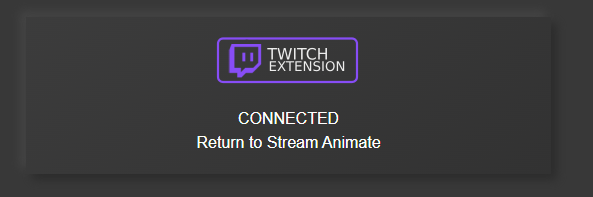
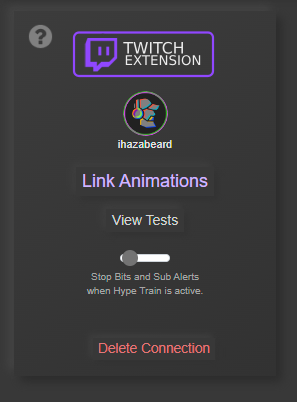
4. Go back to Stream Animate. If connected successfully, you should see new options like the image below.
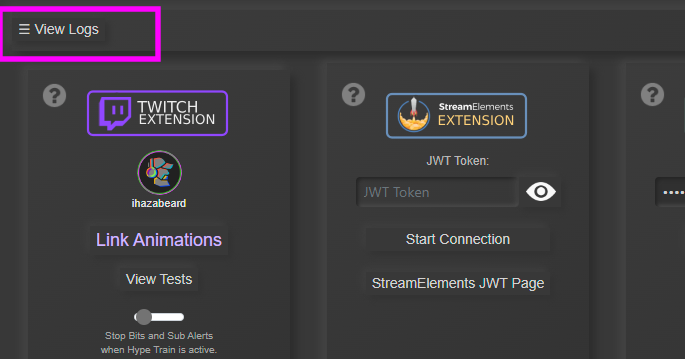
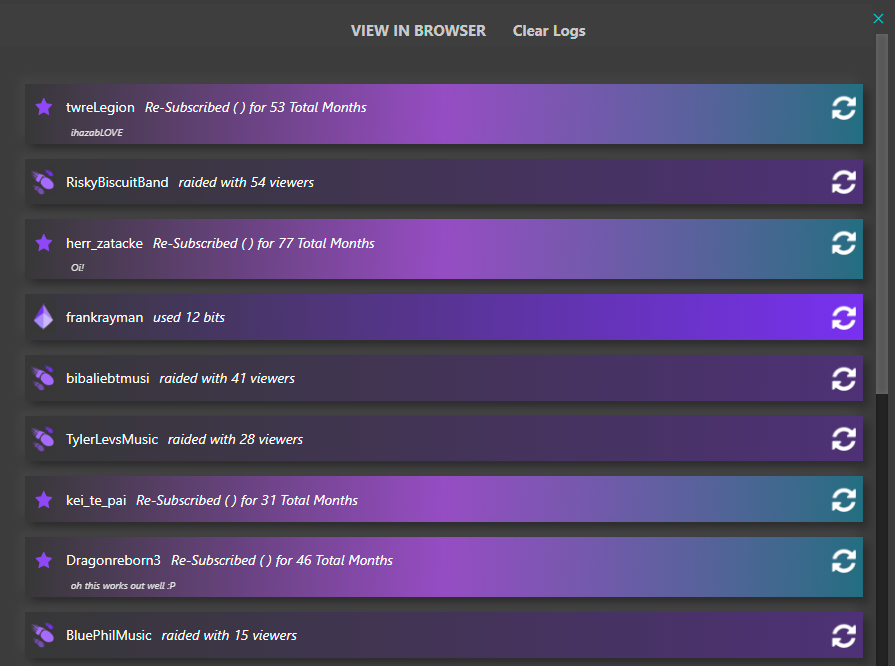
View Alert Logs + Replay Alerts
Mute Alerts
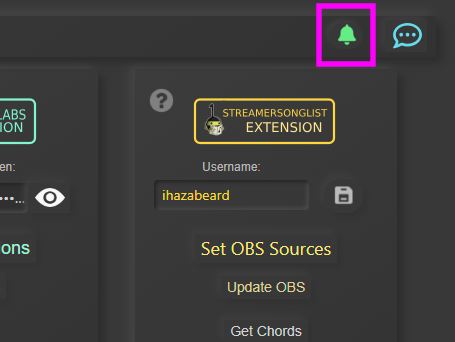
Table of Contents